Span Coding Hooks: IT Admin User Guide for IRU (MDM)
Last updated: August 11, 2026
This guide is for IT administrators deploying Span Coding Hooks to macOS devices via IRU (formerly Kandji). If your console still shows “Kandji” branding, these steps should be identical.
What This Package Does
Span Coding Hooks captures AI coding activity (prompts, file edits, tool use) from supported IDEs (currently Cursor and Claude Code) and sends telemetry to Span’s analytics backend. This data appears in your Span dashboard under AI Effectiveness.
Prerequisites
A Span account with access to the integrations settings page.
IRU managing the target macOS devices, with devices enrolled via your IdP (Google Workspace, Okta, Azure AD, etc.) and a user assigned to each device.
The
coding-hooks-{version}.pkgfile from your Span account team.
Deployment Steps
Step 1: Enable the Integration and Get Your Token (this needs to be done once)
This step is the same regardless of your MDM.
Head to the AI tool settings dashboard (https://span.app/_/settings/integrations) and under IDE & CLI AI Tool Integrations, enable the tools your engineers use. Here is what each tool supports:
Tool | What’s captured |
|---|---|
Claude Code | OTEL metrics + hooks |
Cursor | Hooks |
Codex CLI | OTEL metrics + hooks |
Copilot CLI | Hooks |
VSCode chat | Hooks |
Note: The Cursor integration does not yet have a toggle in the dashboard. If your engineers use Cursor, enable Claude Code or Codex CLI to generate the token — the token is shared across all tools and is required by the package regardless of which IDEs you are deploying for.
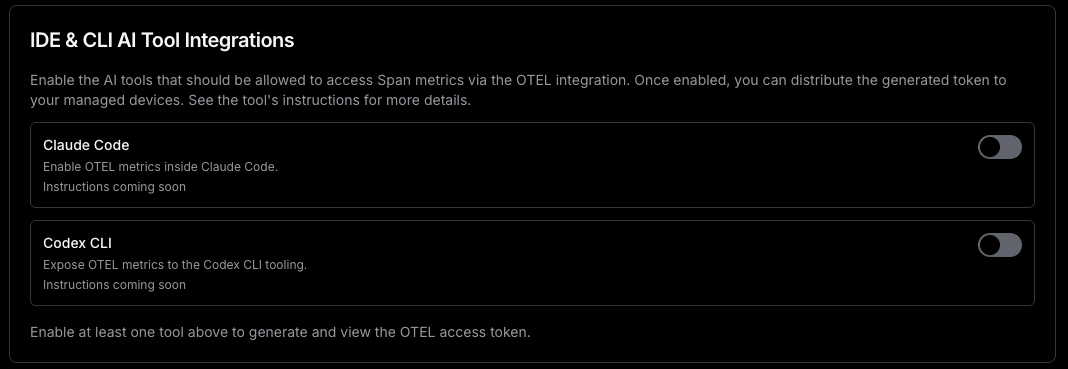
Once you enable a tool, you’ll be able to access the token that you have to use to authenticate against our Otel backend:

Step 2: Deploy the Global Variables Profile (one-time)
IRU scripts run as root and do not have access to user session variables. To get each device’s user email, you must first deploy IRU’s Global Variables profile, which writes user identity data from your IdP to a file on disk.
This only needs to be done once and must be synced to devices before Step 3.
Download
Global Variables.mobileconfigfrom the IRU support repo.In the IRU console: Library → Add Library Item → Custom Profile → upload the
Global Variables.mobileconfigfileAssign to the Blueprint(s) that will receive the Span package. Save and activate. (A Blueprint in IRU is the collection of apps, scripts, and profiles assigned to a group of devices, select whichever Blueprint covers your target machines.)
Once devices check in, verify it is working on a test device:
/usr/libexec/PlistBuddy -c 'print :EMAIL' "/Library/Managed Preferences/io.kandji.globalvariables.plist"This should print the user’s work email. If the output is empty, confirm the device has an IdP user assigned in IRU (Devices → select device → check assigned user).
Step 3: Deploy the Span Configuration Script
This script writes the credentials file that the package reads at install time.
NOTE: Replace all required values above before deploying the script.
KANDJI_API_URL→ Your Kandji tenant API URLKANDJI_API_TOKEN→ Your Kandji API tokenSPAN_AUTH_TOKEN→ Replace<YOUR_TOKEN>with the Span Token from Step 1
#!/usr/bin/env bash
set -euo pipefail

# REQUIRED VALUES TO SET
# Replace YOUR_TENANT with your Kandji tenant name
# Example: https://company.api.kandji.io
KANDJI_API_URL="https://YOUR_TENANT.api.kandji.io"
KANDJI_API_TOKEN="YOUR_KANDJI_API_TOKEN"
SPAN_AUTH_TOKEN="<YOUR_TOKEN>"

export PATH=/usr/local/bin:/usr/bin:/bin:/usr/sbin:/sbin

CONFIG_DIR="/Library/Application Support/app.span.coding-hooks"
CONFIG_FILE="${CONFIG_DIR}/span-config.json"
KANDJI_PLIST="/Library/Preferences/io.kandji.Kandji.plist"

echo "Installing Span coding hooks config..."

# Get Kandji device UUID
DEVICE_UUID=$(
  defaults read "$KANDJI_PLIST" ComputerURL 2>/dev/null \
    | grep -oE '[0-9a-fA-F-]{36}' \
    | head -1 || true
)

if [[ -z "${DEVICE_UUID}" ]]; then
  echo "ERROR: Could not read device UUID from ${KANDJI_PLIST}." >&2
  exit 1
fi

# Fetch device details JSON
DEVICE_JSON=$(
  curl -fsS \
    -H "Authorization: Bearer ${KANDJI_API_TOKEN}" \
    -H "Content-Type: application/json" \
    "${KANDJI_API_URL}/api/v1/devices/${DEVICE_UUID}/details"
)

# Extract assigned user email using native macOS plutil
EMAIL=$(
  echo "${DEVICE_JSON}" \
    | plutil -extract general.assigned_user.email raw -o - - 2>/dev/null || true
)

if [[ -z "${EMAIL}" ]]; then
  echo "ERROR: Kandji API returned no assigned user email for device ${DEVICE_UUID}." >&2
  echo "Confirm the device has an assigned user in Kandji." >&2
  exit 1
fi

mkdir -p "${CONFIG_DIR}"

cat > "${CONFIG_FILE}" <<EOF
{
  "span_auth_token": "${SPAN_AUTH_TOKEN}",
  "work_email": "${EMAIL}"
}
EOF

chown root:staff "${CONFIG_FILE}"
chmod 640 "${CONFIG_FILE}"

echo "Success: ${CONFIG_FILE} written for ${EMAIL}"
In the IRU console: Library → Add Library Item → Custom Script, then:
Shell:
/bin/bashExecution frequency: Install once per device
Script body: paste the script above
Assign to the same Blueprint(s) as Step 2. Save and activate.
Step 4: Deploy the Package
Ask the Span team to share the latest coding-hooks-{version}.pkg for this step.
In the IRU console: Library → Add Library Item → Custom App → upload
coding-hooks-{version}.pkg.In the Pre-install Script field, paste the same script from Step 3. This guarantees the credentials file is written immediately before the package installs, even if the Step 3 script has not yet run on a device.
Set Installation Type to Install once per device.
Assign to the same Blueprint(s) as Steps 2 and 3. Save and activate.
IRU will install the package on assigned devices at next check-in.
Step 5: Smoke Test (before fleet rollout)
Before assigning the Global Variables profile (Step 2), Custom Script (Step 3), and Custom App (Step 4) to your full fleet, validate the full flow on 1–2 pilot devices. This helps catch token typos, missing assigned users, and deployment issues with minimal impact.
In the IRU console, create a pilot Blueprint (or use a temporary test Blueprint) and assign 1–2 pilot devices to it, ideally your own device and one teammate’s.
Assign the following only to the pilot Blueprint:
Global Variables profile from Step 2
Span Configuration Script from Step 3
Span Coding Hooks Custom App from Step 4
On each pilot device, force an IRU check-in:
sudo kandji runConfirm the assigned user email is available on each pilot device:
/usr/libexec/PlistBuddy -c 'print :EMAIL' "/Library/Managed Preferences/io.kandji.globalvariables.plist"This should print the pilot user’s work email.
Confirm the configuration file was written successfully:
cat '/Library/Application Support/app.span.coding-hooks/span-config.json'This should print JSON containing the pilot user’s email and the configured Span token.
In the IRU console, go to Devices → select device → Library tab and confirm:
The Custom Script from Step 3 shows success and ends with:
Success: span-config.json written for <email>The Span Coding Hooks Custom App from Step 4 shows:
Installed
Confirm the package installed on each pilot device:
pkgutil --pkg-info app.span.coding-hooksThis should print a package-id, version, and install-time. If it errors with No receipt for 'app.span.coding-hooks' found, the package did not install. Review the Custom App deployment status before continuing.
Run the health check on each pilot device and confirm every component is green. All checks should pass, and the exit code should be
0:
~/.span/bin/span-healthOnce both pilot devices pass all steps above, assign the Global Variables profile, Custom Script, and Custom App to your production Blueprint(s).
If any step fails, see the Troubleshooting section before proceeding to fleet rollout.
Verifying the Deployment
In the IRU console, go to Devices → select a device → Library tab:
The Custom Script (Step 2b) should show:
Success: config written for <email>The Custom App (Step 3) should show: Installed
To run a full health check on the device:
~/.span/bin/span-healthSuppressing macOS Background Notification
On macOS 13 (Ventura) and later, macOS notifies the user the first time it sees a new background service:
"Software from Attuned Corp. can run in the background."
This is expected, benign behavior. macOS attributes the service to the Developer ID team that signed it — Span (Attuned Corp, team KNH44SBYN4). The notification appears the first time each service is seen on a machine; reinstalls and upgrades do not re-notify.
To prevent the notification from appearing for your users, deploy the configuration profile below through your MDM.
Library → Add New → Custom Profile.
Name it (e.g. Span Coding Hooks — Background Items Allowlist) and upload span-coding-hooks-background-items.mobileconfig.
Assign the relevant Blueprint(s).
Save — Kandji deploys it as a managed profile.
For more details, see here.
Troubleshooting
Script shows “success” but the integration isn’t working
Check what was actually written to disk:
cat '/Library/Application Support/app.span.coding-hooks/span-config.json'If span_auth_token still shows <YOUR_TOKEN>, the placeholder was not replaced before deploying. Fix it:
In the IRU console, go to Library and open the Custom Script from Step 3.
Replace
<YOUR_TOKEN>in the script body with your actual token, then save.Go to Devices → select the affected device → Library tab, find the Custom Script, and click Re-run.
Once the script shows success, find the Custom App (Step 4) on the same Library tab and click Reinstall.
EMAIL is empty
The device does not have an IdP user assigned in IRU. Fix it:
Go to Devices → select the device and confirm a user is assigned. Assign one if missing.
Trigger a check-in. On the device page, click Actions → Send MDM Command → Check In.
After the device checks in, go to the Library tab, find the Custom Script from Step 3, and click Re-run.
Confirm the script output shows
Success: span-config.json written for <email>, then click Reinstall on the Custom App.
Upgrading
In the IRU console, open your existing Span Custom App in Library, upload the new coding-hooks-{version}.pkg as a new version. IRU pushes the update at next check-in. The config script does not need to be redeployed unless your token changes.
Uninstalling
Deploy this as a Custom Script in IRU (same settings as Step 2b):
#!/bin/bash
set -e
bash "/Library/Application Support/app.span.coding-hooks/uninstall.sh"
rm -f '/Library/Application Support/app.span.coding-hooks/span-config.json'
User self-uninstall (for individual opt-out or troubleshooting)
bash "/Library/Application Support/app.span.coding-hooks/uninstall.sh"User-defined hooks in Cursor and Claude Code are
Support
For issues not covered here, contact the Span team with the following from the affected machine:
# Health check
~/.span/bin/span-health

# Installer log
cat /var/log/span-coding-hooks-install.log

# Config file — redact the token value before sharing
cat '/Library/Application Support/app.span.coding-hooks/span-config.json'