Span Coding Hooks: IT Admin User Guide for Mosyle
Last updated: August 11, 2026
This guide is for IT administrators deploying Span Coding Hooks to macOS devices via Mosyle.
What This Package Does
Span Coding Hooks captures AI coding activity (prompts, file edits, tool use) from supported IDEs (currently Cursor and Claude Code) and sends telemetry to Span’s analytics backend. This data appears in your Span dashboard under AI Effectiveness.
Prerequisites
Before deploying, you need:
A Span account with access to the integrations settings page.
Your MDM (Mosyle or Workspace ONE) configured to manage the target macOS devices.
The
coding-hooks-{version}.pkgfile: shared directly by your Span account team.
Deployment Steps
Step 1: Enable the Integration and Get Your Token (this needs to be done once)
Head to the AI tool settings dashboard (https://span.app/_/settings/integrations) and under IDE & CLI AI Tool Integrations, enable the tools your engineers use. Here is what each tool supports:
Tool | What’s captured |
Claude Code | OTEL metrics + hooks |
Cursor | Hooks |
Codex CLI | OTEL metrics + hooks |
Copilot CLI | Hooks |
VSCode chat | Hooks |
Note: The Cursor integration does not yet have a toggle in the dashboard. If your engineers use Cursor, enable Claude Code or Codex CLI to generate the token — the token is shared across all tools and is required by the package regardless of which IDEs you are deploying for.
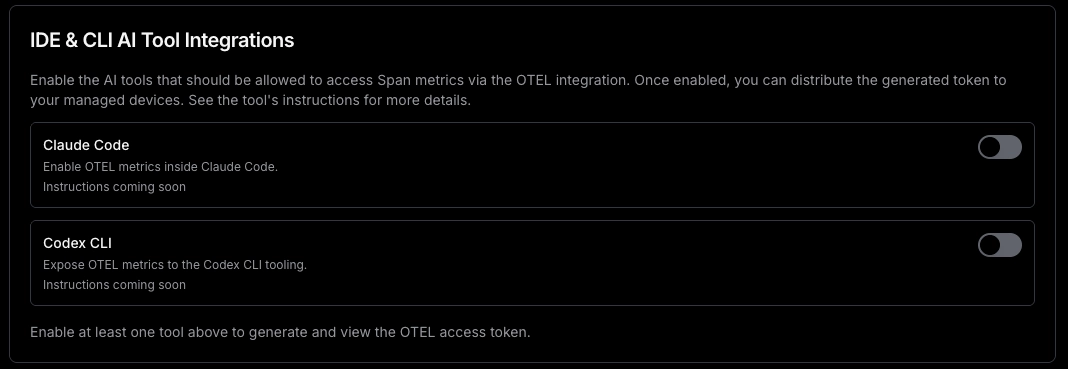
Once you enable a tool, you’ll be able to access the token that you have to use to authenticate against our Otel backend:

Step 2: Deploy Span Configuration File via MDM
The hook installer reads authentication credentials from a span configuration file that you must deploy separately. This file tells the Otel Collector how to authenticate with Span.
Important: Deploy this Custom Command script before or alongside the .pkg installer. The .pkg reads this file at install time to configure the OTel Collector with the correct token and employee email.
Note: The token (<YOUR_TOKEN>) is the same for all employees. Only the email changes per device, and it is substituted automatically by your MDM.
Script : replace <YOUR_TOKEN> with the token from Step 1, and %Email% with the email variable for your MDM (see note below):
#!/bin/bash
set -e

mkdir -p '/Library/Application Support/app.span.coding-hooks'

echo '{
  "span_auth_token": "<YOUR_TOKEN>",
  "work_email": "<EMAIL_VARIABLE>"
}' > '/Library/Application Support/app.span.coding-hooks/span-config.json'

chown root:staff '/Library/Application Support/app.span.coding-hooks/span-config.json'
chmod 640 '/Library/Application Support/app.span.coding-hooks/span-config.json'
How to deploy:
Create a Custom Command, paste the script, assign to your target device group(s), and trigger it.
Step 3: Deploy the Package
Go to Management → Install PKG.
Click Add and upload
coding-hooks-{version}.pkg.[Optional but recommended] In the Pre-Install Script field, paste the same script from Step 2 with the required values already filled in. This ensures the credentials file is created immediately before the package installs, even if the Step 2 Custom Command has not yet executed on the device.
Assign the package to the target device group(s) or all devices.
Mosyle will install the package automatically on assigned devices during the next MDM check-in.
Step 4: Smoke Test (before fleet rollout)
Before assigning the configuration script (Step 2) and package deployment (Step 3) to your full fleet, validate the end-to-end flow on 1–2 pilot devices. This helps catch token typos, incorrect email variables, and deployment issues with minimal impact.
Instructions:
Create a temporary test device group (or use an existing pilot group) with 1–2 pilot devices, ideally your own device and one teammate’s.
Assign the Step 2 Custom Command and the Step 3 package deployment only to the pilot device group.
Trigger a Mosyle check-in on each pilot device, or wait for the next automatic MDM check-in.
Confirm the configuration file was written successfully:
cat '/Library/Application Support/app.span.coding-hooks/span-config.json'This should print JSON containing the pilot user’s email and the configured Span token.
In the Mosyle console, confirm:
The Custom Command completed successfully.
The package deployment shows as installed for the pilot devices.
Confirm the package installed on each pilot device:
pkgutil --pkg-info app.span.coding-hooksThis should print a package-id, version, and install-time. If it errors with No receipt for 'app.span.coding-hooks' found, the package did not install.
Run the health check on each pilot device and confirm every component is green. All checks should pass, and the exit code should be
0:
~/.span/bin/span-healthOnce both pilot devices pass the steps above, assign the configuration script and package deployment to your production device groups.
Verifying the Deployment
The installer runs a full health check at the end of every install. How to review results:
Check the Custom Command output in the Mosyle console per device. No manual SSH required.
Suppressing macOS Background Notification
On macOS 13 (Ventura) and later, macOS notifies the user the first time it sees a new background service:
"Software from Attuned Corp. can run in the background."
This is expected, benign behavior. macOS attributes the service to the Developer ID team that signed it — Span (Attuned Corp, team KNH44SBYN4). The notification appears the first time each service is seen on a machine; reinstalls and upgrades do not re-notify.
To prevent the notification from appearing for your users, deploy the configuration profile below through your MDM.
Console → Management → Management Profiles → Certificates / Custom Profiles → Add new profile
Assign to the relevant Device group (or user group).
Save — Mosyle deploys it as a managed profile automatically.
For more details, see here.
Upgrading
When a new version of the package is available:
Upload the new
coding-hooks-{version}.pkgunder Management → Install PKG and assign it to the same device groups.
The installer handles upgrades cleanly: it replaces only Span’s hooks in the Cursor and Claude Code configs, leaving any user-configured hooks untouched.
Uninstalling
Script — deploy this via your MDM as described below:
#!/bin/bash
set -e
bash "/Library/Application Support/app.span.coding-hooks/uninstall.sh"
rm -f '/Library/Application Support/app.span.coding-hooks/span-config.json'
Create a Custom Command with the script above and assign it to the target devices.
User-defined hooks in Cursor and Claude Code are preserved by both uninstall methods.
User self-uninstall (for individual opt-out or troubleshooting)
bash "/Library/Application Support/app.span.coding-hooks/uninstall.sh"Troubleshooting
Health check
Run the health check tool on the affected machine. It checks all components and shows exactly what is and isn’t working:
~/.span/bin/span-healthShare the output with the Span team if you need further assistance.
Installer log
The installer log has additional context for issues that occurred during initial setup:
cat /var/log/span-coding-hooks-install.logReinstallation
The installer is safe to run multiple times. Reinstalling will update the hook dispatcher and OTel Collector without touching any user IDE configuration outside of Span’s own hooks.
Support
For issues not covered here, contact the Span team with the following from the affected machine:
# Health check
~/.span/bin/span-health

# Installer log
cat /var/log/span-coding-hooks-install.log

# Config file — redact the token value before sharing
cat '/Library/Application Support/app.span.coding-hooks/span-config.json'