How do I add a new user to Span?
Last updated: June 30, 2026
Context
You may need to add new team members to your Span instance, whether they are code contributors (engineers whose metrics will be tracked) or non-contributors who simply need view access. This article explains how to invite and configure new users in Span.
Answer
There are two main ways to add a user to Span, depending on whether the person already exists in your directory or is brand new.
Option 1: Enable account access for an existing directory member
If the person is already in your Span directory (e.g., synced via SCIM/SSO), you can grant them account access by updating their profile:
Go to Settings > People Management.
Find the person's name and click on it.
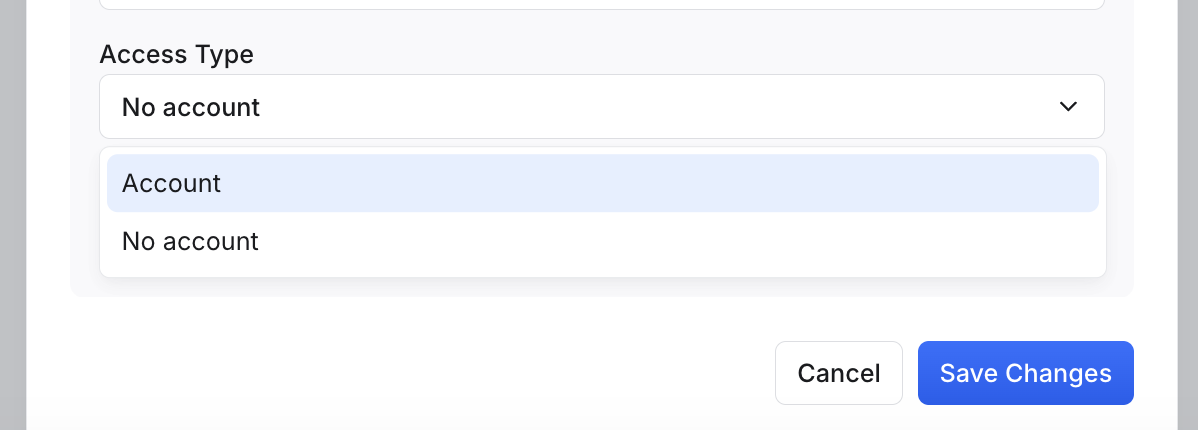
Change the Access Type field from No Account to Account.
Save your changes. This will trigger an invite email to be sent to the user.
Option 2: Manually add a new person
If the person does not yet exist in your directory, you can add them directly:
Go to Settings > People Management.
Click Manage Directory in the top right corner.
Click Add Person and fill in their details.
Option 3: Use the Add User button
You can also add users via the Add User button in the upper right corner of the People Management settings page.
Configuring the new user
When adding a user, consider the following settings:
Team Member: The user's metrics (e.g., code contributions) will be visible across Span. You can associate a VCS (e.g., GitHub/GitLab) username with their profile.
Observer: The user can view data in Span, but none of their own metrics will be displayed.
Permissions Group: Controls what parts of Span the user can access (e.g., admin access to view all teams and data). You can assign or update permissions groups from the People Management settings.
After adding the user
Once added, make sure to:
Assign the user to the correct team via Team Management if they are not automatically associated.
Assign the appropriate permissions group to control their level of access.
If your organization uses SSO (e.g., Okta), ensure the user has also been added to the relevant SSO group, as authentication issues are often caused by missing SSO provisioning rather than a Span configuration problem.
If you do not have the necessary permissions to add users yourself, please reach out to your Span Customer Success Manager for assistance.